The WordPress admin dashboard is the control room for your website, but it can quickly become crowded with plugin notices, unused widgets, and menu items that only an administrator needs. This guide shows you how to simplify the WordPress admin dashboard without removing the tools your team actually needs.
A focused backend helps freelancers, small businesses, and consultants complete routine work faster. The aim is not to make WordPress look empty; it is to make the next useful action obvious for each person who logs in.
Start with the tasks, not the design
Before hiding menus, write down the five tasks each user performs most often. A business owner may edit pages and review form submissions. An editor may work with posts, media, and categories. A freelancer may need plugin settings, backups, and Site Health.
- List the users and their roles.
- Record the screens each user visits every week.
- Note confusing labels, duplicate links, and distracting notices.
- Keep a short record of every customization you make.
Practical ways to simplify the WordPress admin dashboard
1. Remove unused dashboard widgets
Open the Dashboard and use Screen Options to hide boxes that do not support a real decision or action. Remove duplicate statistics, promotional panels, and widgets nobody checks. Keep useful items such as At a Glance, activity, Site Health, and a help panel with links to your own documentation.
2. Hide or reorder admin menus by role
If a client only edits pages and manages media, there is little value in showing advanced settings, plugin configuration screens, or development tools. Admin Menu Editor can reorder menus, rename items, hide items, change capabilities, and create shortcuts.
Practical setup: install the plugin, open Settings > Menu Editor, select the role you want to simplify, and hide only items that role does not need. Save a note listing what you changed. Do not treat hidden menus as security: a user’s capabilities still determine what they can actually do.
3. Replace the default dashboard with useful shortcuts
Sometimes the best dashboard is a short launchpad. A dashboard customization plugin can remove default widgets and add clear links to the areas users visit most. Use a text widget for a short publishing checklist, and shortcut widgets for Add New Post, Media Library, Form Entries, or your support page.
Keep the wording task-based: “Upload a blog image” is more useful than “Media.” Add only the links users need; a dashboard full of shortcuts recreates the original clutter.
Custom WordPress Admin Dashboard Creator
Use Custom WordPress Admin Dashboard Creator when the default WordPress welcome screen does not give your team the right starting point. It is a natural fit for creating a branded, task-focused dashboard with useful guidance and shortcuts for clients, editors, or internal teams.
4. Restrict dashboard access when users do not need it
Some users only need the front end of the site or a limited editing workflow. Decide whether users should be limited to the front end, allowed to edit their profiles, or permitted to reach a small allowlist of admin pages. Test the redirect with a non-administrator account before giving the account to a client. Leave AJAX blocking disabled unless you understand the effect on your site’s legitimate front-end requests.
Use role-specific dashboards carefully
Administrators, editors, authors, and contributors do not need the same workspace. Give editors publishing guidance and draft links; give authors media instructions; keep maintenance, privacy, backup, and security tools available to administrators. Test each role after every major WordPress or plugin update.
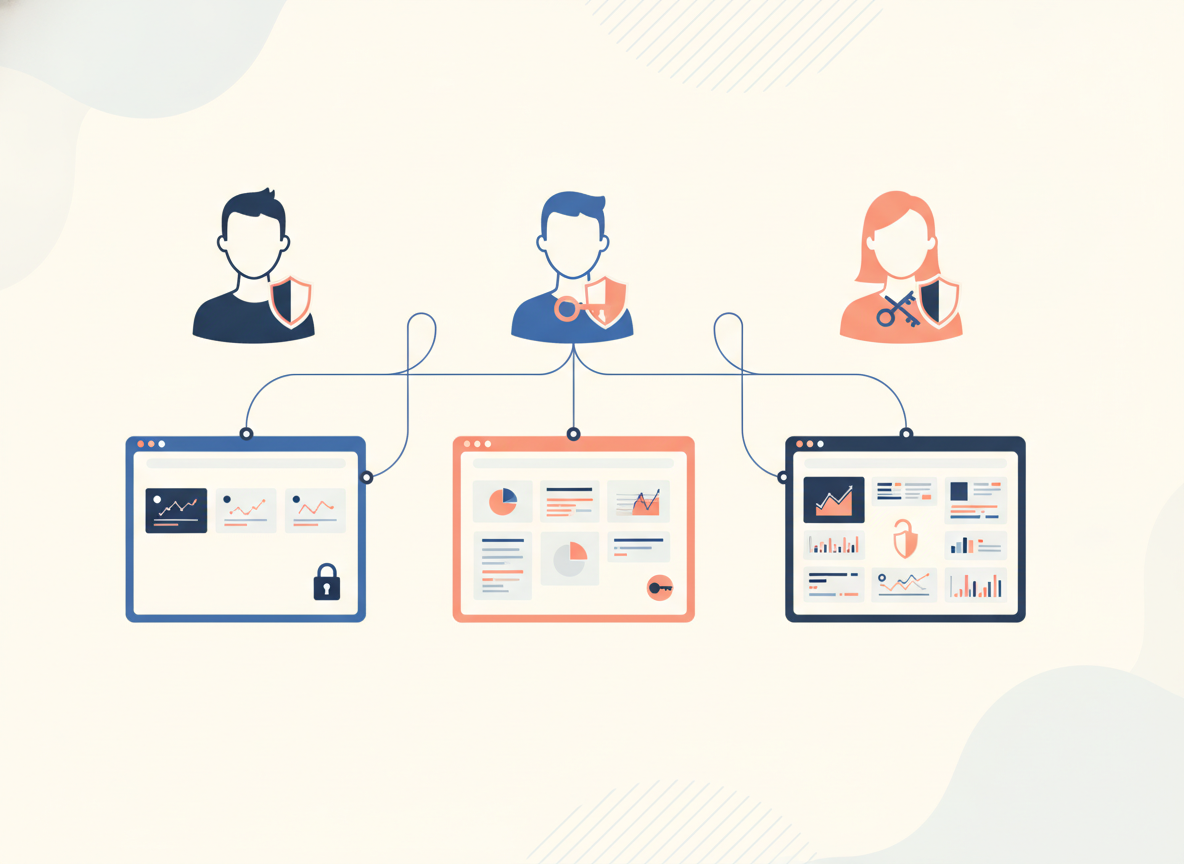
Do not confuse menu hiding with security
Removing a menu item improves usability, but it does not replace WordPress roles and capabilities. A hidden link is not the same as a denied action. Review permissions separately, use the least-privilege role that fits the job, and keep an administrator recovery account. Always test changes in a staging copy when possible.
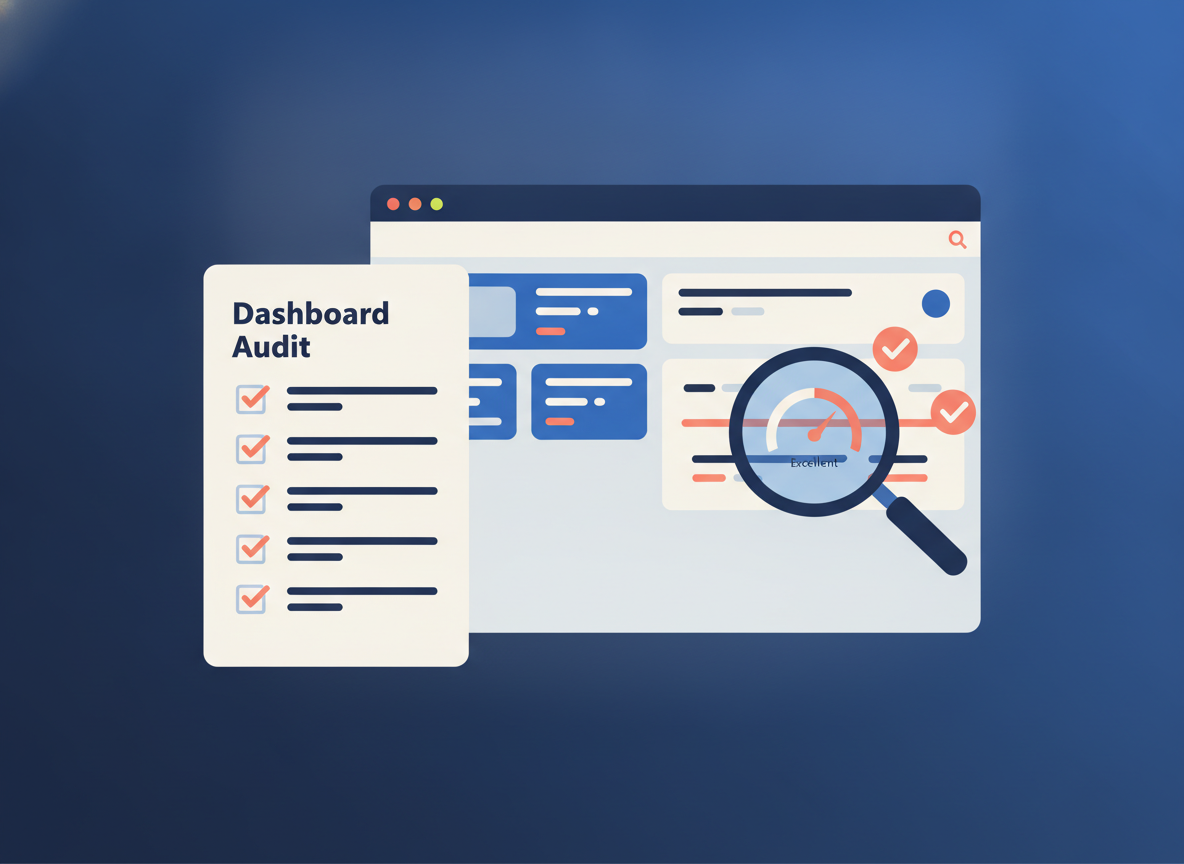
A 15-minute dashboard audit
- Log in as each important role, not only an administrator.
- Count the clicks needed for the five most common tasks.
- Hide one distracting widget and one unnecessary menu item.
- Add a shortcut to the most frequently used screen.
- Confirm that support, documentation, backup, and emergency links work.
- Ask a real user to complete a normal task without coaching.
- Review the setup after core and plugin updates.
Additional plugins worth considering
If you want a more focused workflow without assembling several separate tools, these three plugins from WP Simple Hacks address different parts of dashboard and site administration. Choose the one that matches the bottleneck you found in your audit.
Page to Navigation Menu Adder for WordPress
If important pages are difficult to add to a navigation menu, Page to Navigation Menu Adder for WordPress can make that workflow quicker. It is especially useful when a site has documentation, landing pages, client resources, or other pages that should be added to navigation as part of the publishing process.
AJAX Plugin Manager for WordPress
For maintenance workflows, AJAX Plugin Manager for WordPress provides a faster way to manage plugin actions from the admin area without repeatedly waiting for full page reloads. Use it to reduce friction during routine plugin maintenance, while still testing updates carefully and keeping backups.
These recommendations solve different problems: dashboard customization improves the starting screen, page-to-menu tools streamline navigation setup, and AJAX-based plugin management speeds up maintenance. Review each plugin’s current documentation, compatibility, changelog, and privacy information before installing it on a production site.
Conclusion
The best custom WordPress dashboard is not the one with the most widgets. Start with real tasks, remove distractions, add practical shortcuts, and tailor the experience to each role. Make one measured improvement today, then ask a client or teammate whether the next action is easier to find.