WordPress Frontend Quick Editor – Edit WordPress Content Without Leaving Your Website

Making a small change to a page or product should be simple. But the usual WordPress workflow often means opening the dashboard, finding the right item, opening the editor, making the change, and then returning to the page to check the result.

WordPress Frontend Quick Editor makes that process much faster.

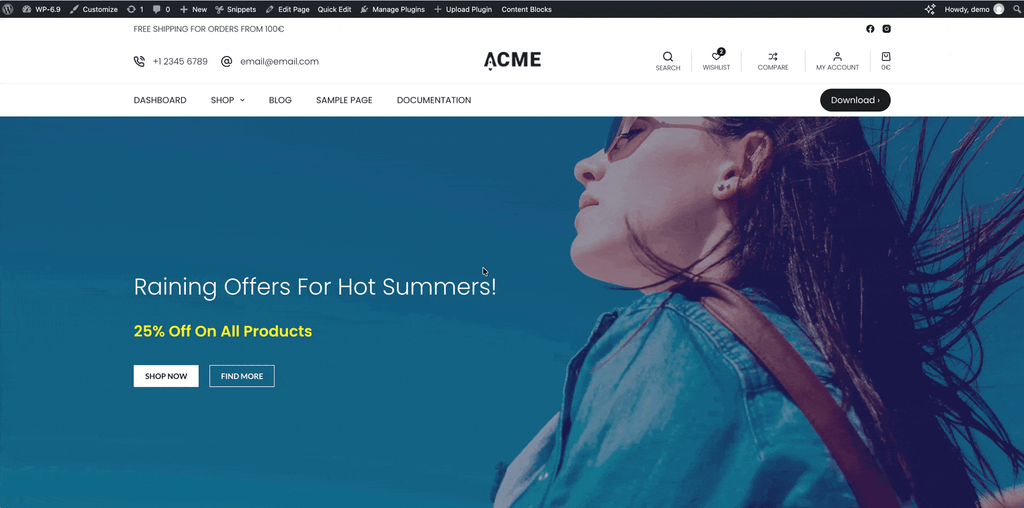
With this plugin, you can open the normal WordPress editor directly from the page or WooCommerce product you are currently viewing. You can edit the content, save it, and immediately see the updated result.

Why is WordPress Frontend Quick Editor plugin useful?

Imagine you notice a typo on a page, want to update a heading, change a button, or adjust a product description. Instead of leaving the page and searching through the WordPress dashboard, you can edit it right where you are.

The plugin adds a “Quick Edit” link to the WordPress admin bar for users who have permission to edit the current item.

It uses WordPress’s own editor, so you still get the familiar editing tools, blocks, media library, product settings, revisions, and save buttons.
WordPress Frontend Quick Editor - Edit WordPress Content Without Leaving Your Website

How to use it

  1. Log in to your WordPress website.
  2. Open a page, blog post, or WooCommerce product on the front end of your website.
  3. Look for “Quick Edit” in the black WordPress admin bar at the top of the page.
  4. Click “Quick Edit”.
  5. The editor opens in an overlay on top of the page.
  6. Make your changes as usual.
  7. Click Update or Save.
  8. The overlay closes and the page refreshes with your changes visible.

If you try to close the editor with unsaved changes, the plugin asks for confirmation first.

Which content types does it support?

Frontend Quick Edit works with:

  • WordPress Pages
  • WordPress Posts
  • Public custom post types that use the WordPress block editor
  • WooCommerce Products

For WooCommerce products, the plugin opens the normal WooCommerce product editor. This means you can update product titles, descriptions, prices, stock, categories, tags, images, attributes, and other standard product settings.

When will Quick Edit not appear?

The link is only shown when:

  • You are logged in.
  • You have permission to edit the current content.
  • You are viewing one individual page, post, or product.
  • The post type is supported.

It does not appear for regular visitors, archive pages, search results, or content that you cannot edit.

A faster way to keep your site up to date

Frontend Quick Edit is designed for everyday changes: fixing text, updating product information, changing images, and making quick content improvements without interrupting your work.

It keeps the editing experience familiar while removing unnecessary steps.

Do you want to thank me and buy me a beer?

Every donation is entirely welcome but NEVER required. Enjoy my work for free but if you would like to thank me and buy me a beer or two then you can use this form here below.

Donation Form (#2)

Here are some of my favorite WordPress tools

Thanks for reading this article! I hope it's been useful as you work on your own websites and e-commerce sites. I wanted to share some tools I use as a WordPress developer, and I think you'll find them helpful too.

Just so you know, these are affiliate links. If you decide to use any of them, I'll earn a commission. This helps me create tutorials and YouTube videos. But honestly, I genuinely use and recommend these tools to my friends and family as well. Your support keeps me creating content that benefits everyone.

Themes: Over the past few years, I've consistently relied on two primary themes for all sorts of projects: the Blocksy theme and the Kadence Theme. If you explore this website and my YouTube channel, you'll come across numerous tutorials that delve into these themes. If you're interested in obtaining a 10% discount for both of these themes, then:

Code Snippets Manager: WPCodeBox allows you to add code snippets to your site. Not only that, but it also provides you with the capability to construct and oversee your WordPress Code Snippets library right in the cloud. You can grab it with the 20% discount here (SAVE 20% Coupon: WPSH20).

Contact forms: There are hundreds of contact forms out there but Fluent Forms is the one I like the most. If you need a 20% discount then use this link (save 20% coupon is WPSH20).

Gutenberg add-ons: If I need a good Gutenberg blocks add-on then Kadence Blocks is the one I have used the most. You’ll get a 10% discount with the coupon SIMPLEHACKS here.

Website migration: While building a website you probably need a good plugin that can help you with the migration, backups, restoration, and staging sites. Well, WpVivid is the one I have used for the last couple of years. If you use this link along with the WPSH20 coupon you’ll get a 20% discount.

Woocommerce extensions: There are a bunch of Woocommerce extensions that I like but the one that stands out is Advanced Dynamic Pricing. Once again, you’ll get a 20% discount if you use this link here (save 20% coupon is WPSH20)

Web Hosting: If you would like to have a really fast and easy-to-use managed cloud hosting, then I recommend Verpex Hosting (see my review here). By the way, this site is hosted in Verpex.)

To see all my most up-to-date recommendations, check out this resource that I made for you!

Janek T.
Janek T.

- I have been passionate about Wordpress since 2011, creating websites and sharing valuable tips on using Wordpress and Woocommerce on my site.
- Be the first to receive notifications about new tutorials by subscribing to my Youtube channel .
- Follow me on Twitter here

Articles: 170