
Your WooCommerce store probably has hundreds of products. But not all of them deserve equal attention on your homepage. Some are bestsellers. Others just launched. A few are seasonal. The reality is, you need control over which products your customers see first.
That’s where the WooCommerce Handpicked Products plugin comes in. Instead of letting your theme’s default product display rules take over, you can now manually select exactly which products appear where on your site.
Video: How To Use WooCommerce Handpicked Products Block plugin
Why Manual Product Selection Matters?
Think about your best products. Maybe you have a flagship item that gets great reviews. Perhaps you’ve got inventory you need to move. Or maybe you’re testing a new collection and want to feature it prominently.
Showing the same products everywhere gets boring. Your customers scroll past the same items repeatedly. But when you handpick products for specific pages or sections, you’re essentially saying “these are worth your time.”
This approach works because it mimics how successful physical stores operate. Retail stores don’t just randomly stock shelves—they strategically place their best products where customers are most likely to see them. Your online store should work the same way.
Beyond Just Handpicked Products
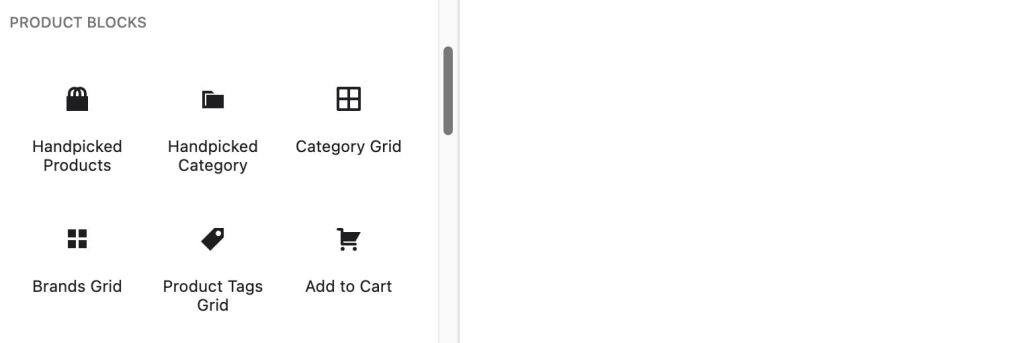
This plugin actually gives you six different blocks to work with, not just handpicked products.
Category blocks let you display all products from specific categories. Pick which categories to show and exclude products you don’t want featured. The block generates the correct shortcode automatically.
Category Grid shows subcategories instead of individual products. Perfect for helping customers browse your catalog.
Brands Grid displays all your product brands with images and product counts. Great if you sell multiple brands or want to highlight key partners.
Tags Grid works similarly, showing product tags in a visual grid layout.
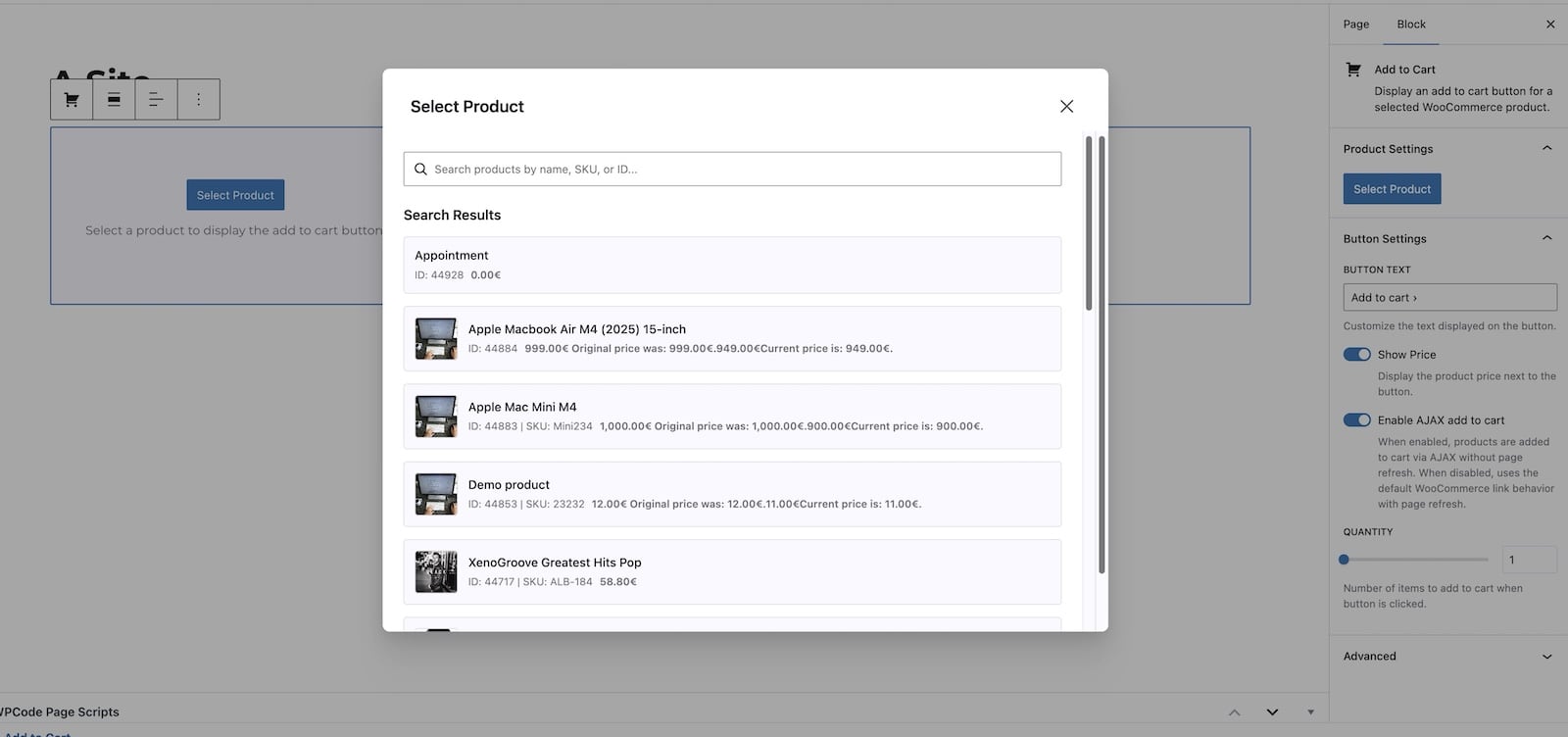
Add to Cart block features a single product with a prominent “Add to Cart” button. You can customize the button text, show or hide the price, set a default quantity, and enable AJAX so customers don’t have to leave the page.
Each section tells customers what matters right now. This approach increases engagement because customers feel like you’ve curated the experience just for them.
- A hero section featuring your top-rated tent (one product with the Add to Cart block)
- A “Winter Essentials” section with 6 handpicked winter items
- A “Best Sellers” section that automatically filters to show only your most popular products
- A “New Arrivals” section with your latest gear
What You Can Actually Do With Woocommerce Handpicked Products Plugin
Select Products Exactly How You Want
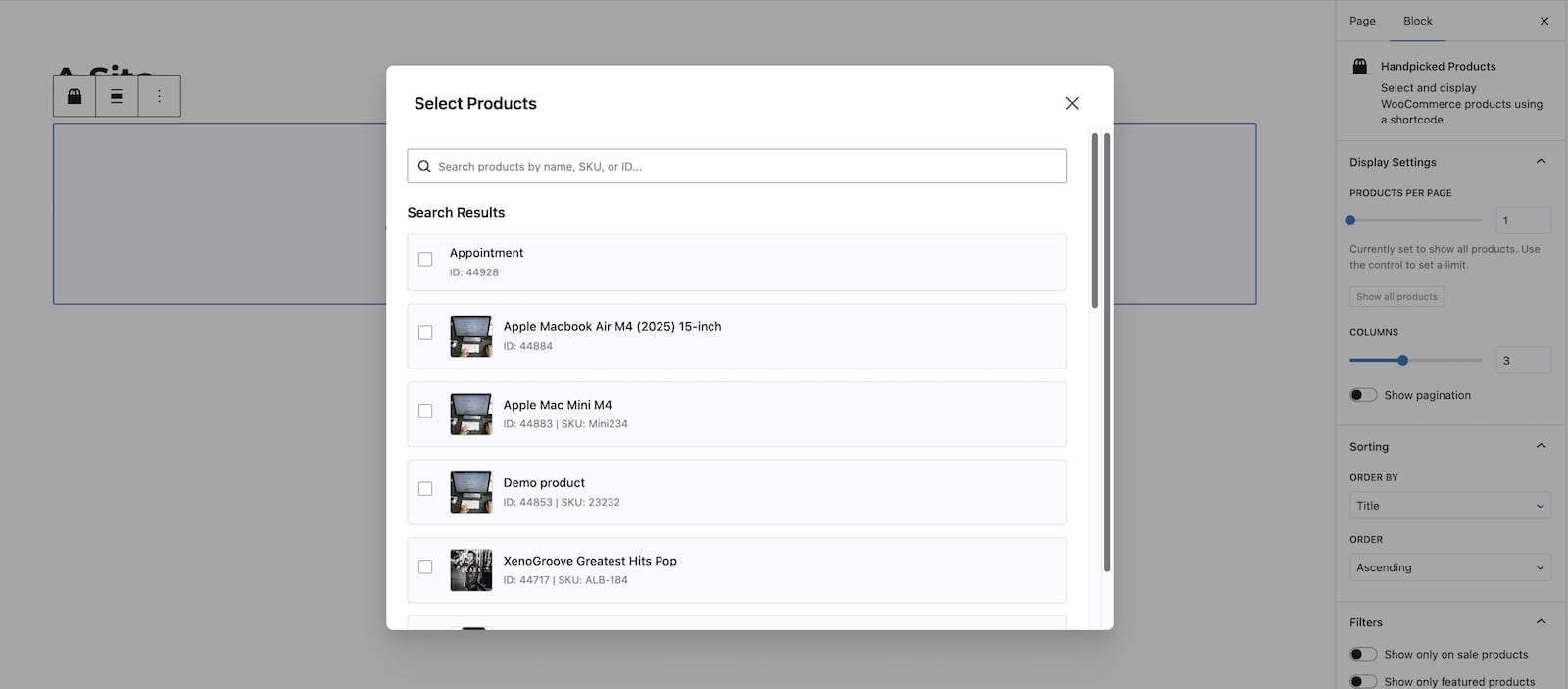
Open the Gutenberg editor, add the Handpicked Products block, and search for products by name, SKU, or ID. You can select multiple products and arrange them in any order you prefer. Want your best-selling item first? Drag it to the top. Need to feature a new arrival? Add it to the list.
The plugin comes with a visual product selection modal that shows you thumbnails, names, and IDs. You’ll know exactly which product you’re adding before confirming your selection.
Display Multiple Products or Just One
Set how many products appear on the page. Display all handpicked items at once, or limit it to 3, 5, or 10. You control the flow. If you want to add pagination so customers click through to see more, that’s built in too.
Apply Smart Filters On Top of Your Selection
You can filter your handpicked products to show only items that are currently on sale, marked as featured, or ranked as best sellers. This means you could select 20 products but only display the ones on sale that week. When your sale ends, the display automatically updates.
Customize How Products Look
Control how many columns the products span on your page. On mobile, you might want 1 column. On desktop, maybe 3 or 4. The plugin handles responsive design automatically.
You can also choose how products are sorted. Sort by title, date, popularity, rating, or let the order be completely random. Each option serves a different purpose depending on what message you want to send to your customers.

Real-World Example
Imagine you run an outdoor gear store. Your homepage currently shows products in the order they were added to WooCommerce. But you want to tell a story instead.
With Handpicked Products, you could create sections like this:
Woocommerce Handpicked Category Block
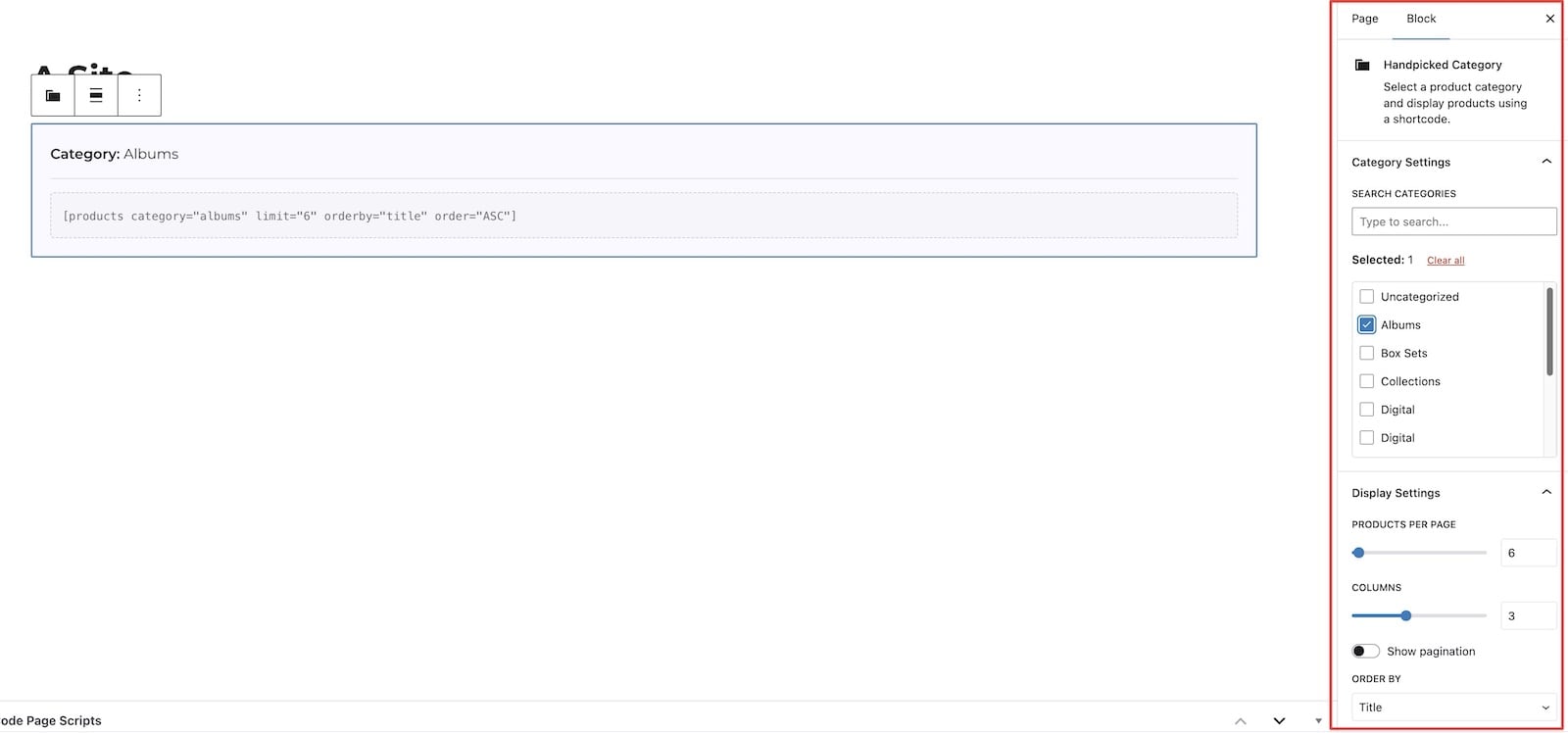
The Handpicked Category block solves a different problem than handpicked products. Instead of selecting individual items, you select entire categories and let the block display whatever products live in those categories.
This is useful when you want to say “here’s our electronics section” or “check out all our winter clothing” without manually picking every single product.
How It Works?
You select one or more categories from your WooCommerce setup. The block then displays all products from those categories. You control how many products show at once, how many columns they span, whether pagination appears, and how they’re sorted.
The real power comes from the exclusion feature. Say you’ve got 50 products in your “clearance” category, but 5 of them are damaged or about to be delisted. You don’t need to remove those products from the category. Just exclude them from the block. The block shows the remaining 45.
Real-World Scenario
You’re running a clothing store. Your homepage has three sections:
- New arrivals (handpicked products)
- Summer collection (using the Handpicked Category block)
- Clearance items (using the Handpicked Category block, but excluding items that aren’t actually available)
When you add new products to your Summer category, they automatically appear in that homepage section. You didn’t have to edit the page. No manual updates needed.
Meanwhile, if someone returns a clearance item, you add it to the exclusion list and it disappears from the block immediately. Customers never see products you can’t actually sell.
Sorting and filtering Gives You Flexibility
You can filter category displays to show only sale items. This means you could feature your entire “Home Decor” category but only display items that are currently discounted. When the sale ends, those products disappear from that section automatically.
Sort products by title (A-Z), date (newest first), popularity, rating, or randomly. Each choice changes how customers perceive your products. Random sorting makes the section feel fresh every time someone visits. Rating-based sorting builds trust because customers see your best-reviewed items first.
Woocommerce Add to Cart Block: Turn Single Products Into Conversion Machines
The Add to Cart block is deceptively simple. You pick one product, add it to your page, and customers see a prominent button they can click to purchase it. But the simplicity is the point.
This block works best when you want to draw attention to a specific product without any distractions. No product grid. No competing items. Just one thing your customers should buy right now.
When to Use Add to Cart
- You’ve got a seasonal product that’s only available for two weeks. An Add to Cart block on your homepage makes sense.
- You’re promoting a bundle or limited-edition item. Feature it with this block.
- You want a simple, high-contrast call to action. This block delivers that.
- You’re testing whether customers actually want a specific product. The Add to Cart block makes it easy to see how many people click versus how many people scroll past.
Customization Options
Custom button text lets you change “Add to Cart” to something more specific. “Get Started,” “Claim Yours,” or “Shop This Look” tells customers exactly what happens when they click.
Show or hide the price depending on your strategy. Some stores show the price to build trust. Others hide it to encourage clicks and reveal the price at checkout.
Set a default quantity so customers can add multiple items at once. If you sell bulk items or bundles, this saves them a step.
Alignment control (left, center, right) helps the block fit your page design.
AJAX functionality keeps customers on your page after they add something to their cart. They can keep browsing instead of being redirected to the cart page. This is especially useful on homepage sections where you want to keep momentum going.
Real-World Example
You’re selling online courses. Your homepage has a hero section featuring your flagship course with an Add to Cart block.
You customize the button text to say “Enroll Now” instead of “Add to Cart.” The price displays prominently because you’re confident in your pricing. You set AJAX to enabled so when someone enrolls, they stay on the homepage and can scroll down to see testimonials or the course outline.
That block might convert better than a traditional sales page because it removes friction and keeps people engaged with your content.
Another Example: Product Showcase
You run a coffee roasting business. Your homepage features different blends each season. Right now, you’re promoting your “Winter Dark Roast.”
You use an Add to Cart block with the custom text “Order Now.” You show the price ($24.99). You set the default quantity to 2 because most customers buy two bags at a time anyway. AJAX is enabled so they can keep exploring your site after adding it to their cart.
The block is simple, focused, and converts because it removes every obstacle between customer and purchase.
Setup Takes Minutes, Not Hours
Install the plugin, activate it, and you’re ready to go. It works with WordPress 5.8 and higher, WooCommerce 10.0 and higher, and PHP 8.2 or higher.
The blocks appear in the Gutenberg editor under a dedicated “Product blocks” category. Search for “Handpicked Products” and you’ll see it immediately.
No coding required. No shortcode memorization. No guessing whether your syntax is correct.
Security and Performance Built In
The plugin sanitizes all inputs and verifies user capabilities. Rate limiting prevents abuse. Asset loading is conditional, meaning the plugin only loads what it needs when blocks are present on your pages.
Translation support is built in. Need to run your store in multiple languages? The plugin is ready for that.
Take Control of Your Product Display
Most store owners accept whatever their theme gives them. Products appear in a certain way and that’s that. But your store is unique. Your products are unique. Your customers expect a curated experience.
Handpicked Products gives you that control. You decide which items get featured. You decide the order. You decide the layout. And you do it all without touching code or wrestling with shortcodes.
If you’ve ever wanted to showcase products strategically instead of hoping your theme’s defaults work, this plugin is worth trying. Your best products deserve better than autopilot.


